Salve DB Studio
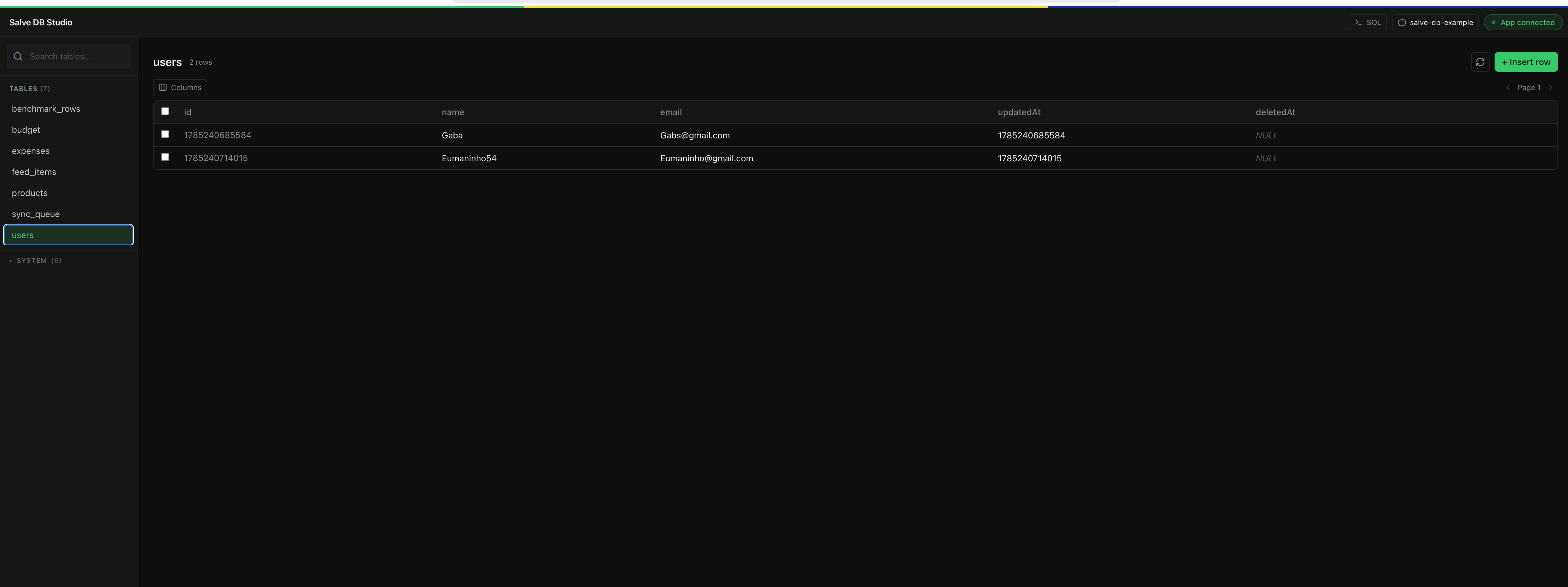
Salve DB Studio is a local, live-connected UI for browsing and editing your running app's database from the browser — Prisma Studio or Drizzle Studio style, but pointed at the real SQLite database inside your simulator or device, not a copy of it.
There's no export/import step and no "refresh to see changes" — Studio holds a live WebSocket connection to your app, so table data, row edits, and query results reflect exactly what's on-device right now.
Running it
From the repo root of this monorepo:
npm run db:studio
This starts the Studio server (packages/salve-db-studio) — an Express + WebSocket relay listening on port 7377 — and serves the Studio's React UI, opening it in your default browser automatically.
Using it outside this monorepo
If you're consuming react-native-salve-db as a dependency in your own app (not working inside this repo), run Studio with:
npx salve-db-studio
No install step needed. This works because of a small packaging trick: salve-db-studio (the bare, unscoped name you can npx directly) is a tiny launcher package whose entire job is require('@salve-software/salve-db-studio'). Its dependency on the real package is pinned at "*", so npm/npx always resolves it to whatever is currently tagged latest on the registry — the launcher itself never needs to be republished when the real Studio package ships a new version. You always get the newest Studio, every time you run the command.
Connecting your app
There's no configuration to add. When your app calls Database.configure(...) while running in __DEV__, it automatically opens a WebSocket connection to ws://localhost:7377 and starts streaming live change events to Studio as you use the app — every insert, update, and delete triggered from your JS or from sync shows up there in near real time.
This means the usual workflow is:
- Start your app as normal (
npx react-native run-ios/run-android, or theexample/app's own scripts). - Run
npm run db:studio(ornpx salve-db-studiooutside this repo). - Studio's browser tab connects automatically — no pairing step, no manual host/port entry.
Multiple devices and simulators
If you have more than one simulator or device running the app at once — say, an iOS simulator and an Android emulator side by side, or two iOS simulators for different test accounts — each one opens its own WebSocket connection and shows up as a separate entry in Studio's device selector. Pick whichever one you want to inspect from that list; Studio only ever shows the data for the currently selected device, so you're never looking at a merged or ambiguous view.
What you can do from the UI
Once connected to a device, Studio gives you full read/write access to that device's live SQLite database:
- Browse every table — including the internal
_salve_*sync tables (_salve_sync_queue,_salve_sync_cursors,_salve_sync_metadata, and friends) that the Trigger Engine and Sync Queue maintain automatically. This is the fastest way to answer "why hasn't this row synced yet" — you can see the actual queued operation, its retry state, and the cursor position side by side with your own tables. - Insert, edit, and delete rows directly, with the same triggers firing as if the change came from the app itself — an edit made in Studio enqueues a sync operation exactly like a JS-side
Database.update(...)call would. - Run raw SQL against the live database — useful for one-off inspection queries, joins across tables Studio's table view doesn't model, or reproducing a bug with a specific
WHEREclause. - Truncate a table, clearing all its rows while keeping the schema.
- Drop a table — restricted to your own application tables. The internal
_salve_*tables that back migrations and sync are visible and editable, but cannot be dropped from the UI, since removing them out from under a running sync engine would leave it in an inconsistent state.
When to reach for it
Studio is a development-time tool, not something you ship — it only activates because your app calls Database.configure(...) under __DEV__, so there's no code to strip out for production builds. Reach for it whenever you'd otherwise be tempted to add temporary console.log calls around a query, inspect the sync queue by hand, or poke at table contents through a separate SQLite browser pointed at a copied .db file. Because it's live and it's the actual on-device database, nothing you see in Studio can be stale or out of sync with what your app is doing.
For the shape of the tables you'll see under _salve_* and what each one is for, see the Sync guide. For the query API that produces the same row changes Studio streams, see the Query Builder guide.